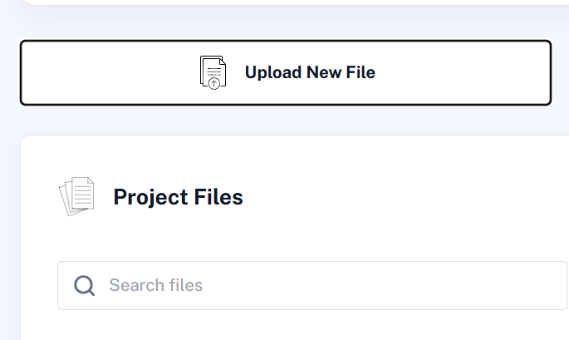
To add documents to your project, click Upload New File. You'll be asked to choose one of two upload paths, depending on what you're adding.
Choosing the right upload path
- Transcribing audio or video. Choose Auto-detect or one of 18 preset languages for better transcription accuracy. See Audio Recordings and Video Recordings.
- Uploading a transcript prepared elsewhere. Switch on Detect Speakers. See Transcript Formatting for how to format speaker IDs so QInsights can recognize them reliably.
For reports, notes, or articles in Word or PDF format, and for spreadsheet-based survey data, there's nothing to transcribe or detect - select the file and click Proceed directly. See Word Documents, PDF Documents, and Excel & Survey Data for format-specific preparation guidance.
Note: QInsights currently transcribes one audio or video file at a time.
After upload: the project view
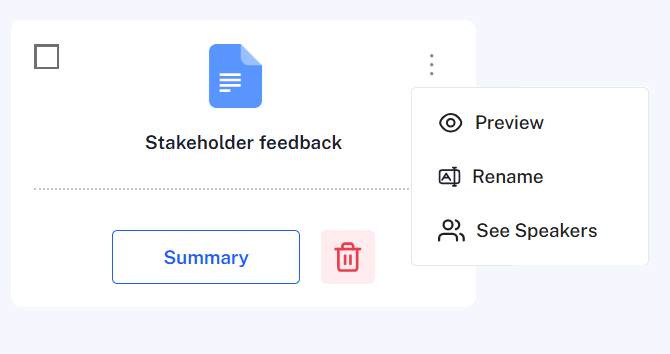
Once your files are uploaded, each one appears as a document card showing basic information and quick actions (view a summary, delete, or open the three-dot menu for more options).
Recommendation: keep survey data stored in Excel files in a separate project. Excel data is processed differently from Word, PDF, audio, or video files and can't be combined with them in a single analysis. A separate project also keeps Data Context manageable, since spreadsheet columns are imported automatically and can quickly add up.
If a summary doesn't appear
If the Summary button on a Word or PDF document card looks faded, no summary was generated during import - usually because the upload connection was interrupted. Delete the document and upload it again rather than continuing to work with a file that has no summary preview, as this can cause errors later. Excel summaries appear after a page reload.
Three-dot menu
For Word, PDF, and Excel files, the three-dot menu on a document card offers:
- Preview - open a read-only view of the document
- Rename - give the document a name that fits your analysis
- See Speakers - view detected speakers (transcripts)
Transcripts have an additional option, Edit, for reviewing and correcting the transcript text - see Transcript Formatting.
Deleting documents
- Single document: click the bin icon on its card.
- Multiple documents: select their checkboxes, then click the bin icon in the action toolbar.
Sorting documents
Use the sort controls above the file list to order document cards by:
- Name (A–Z) - click once for A→Z, again to reverse
- Date (Newest/Oldest) - click again to reverse the order
Sorting helps you find files quickly in larger projects.
Next steps
Once your files are in, configure Data Context - speaker roles and respondent or document characteristics - so QInsights can interpret your data correctly during analysis.