Conversational Analysis is a dynamic, researcher-guided way to explore your data. It supports structured methods like inductive and deductive analysis, but also works as an accessible entry point if you're new to qualitative research - Q can suggest preliminary questions to help you get started.
How it works
1. Choose your starting point
- New to qualitative analysis? Ask Q: "I am new to qualitative analysis, can you suggest some initial questions to explore my data?"
- Inductive approach - dive into the data and let emerging patterns guide your analysis.
- Deductive approach - use an existing theory or hypothesis as a framework for examining the data.
See Prompting Strategies for a full walkthrough of each approach, plus abductive analysis for when you notice something unexpected.
2. Engage in dialogue with Q
Ask specific, focused questions. Q searches and retrieves relevant material from your data and returns a nuanced response - an insight, a summary, or a synthesis, depending on how the question is phrased.
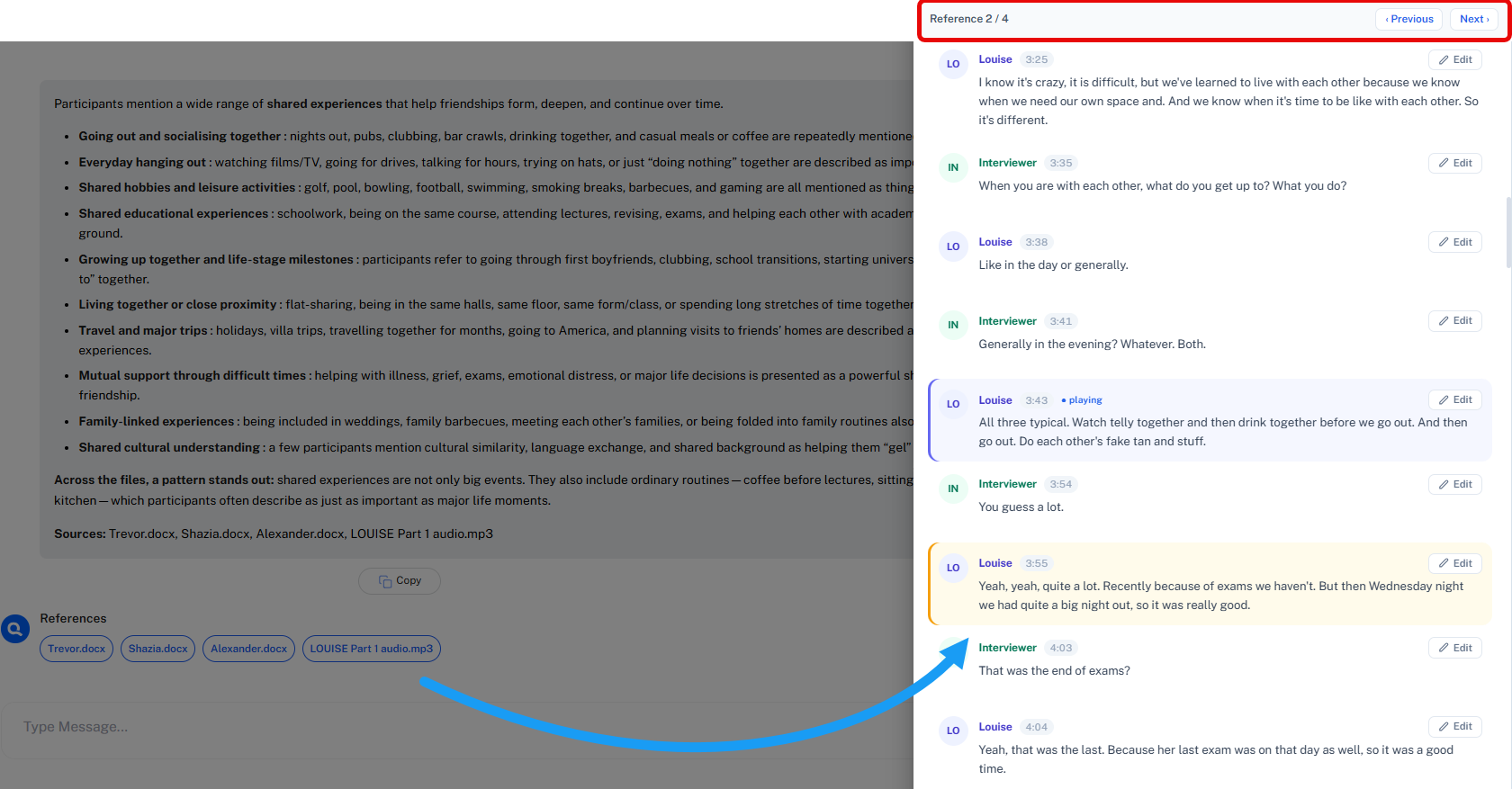
To validate an answer, click a document name below the response. As with Theme Analysis, highlighted segments point you to the right region of the source document rather than marking formally coded text - use them to check Q's answer against your data.

Audio references work the same way - click Previous/Next to move through supporting segments in the recording.
3. Iterate and refine
Build on Q's responses with follow-up questions that clarify or deepen your understanding, and steer the conversation toward patterns, relationships, or exceptions relevant to your analysis. See Analytic Questions and Templates for ready-to-adapt prompt examples.
Talk to your data
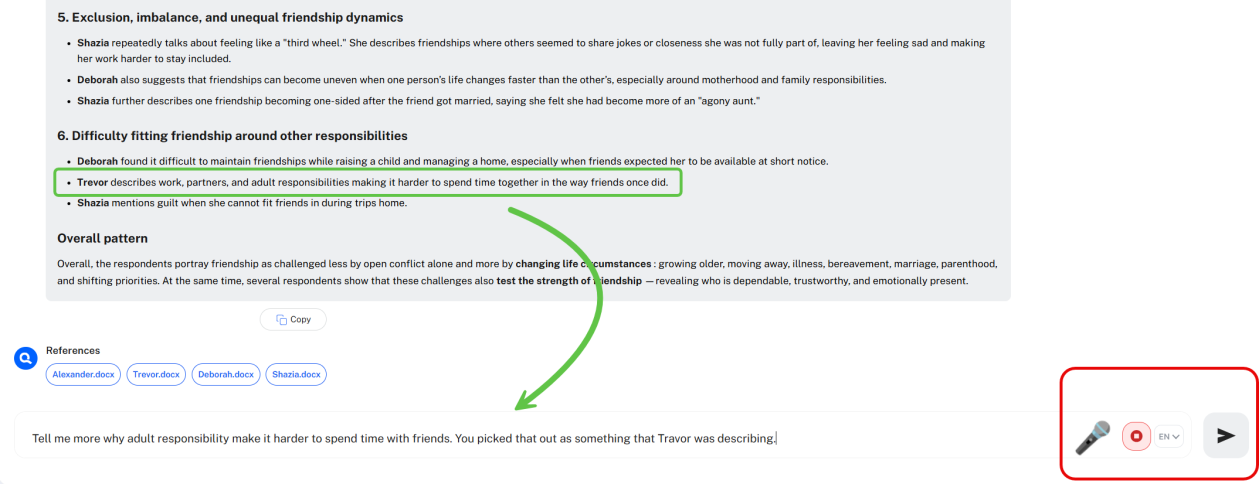
You can speak your instructions to Q instead of typing them. This currently works in English and German, in Chrome only, with more languages planned.
To use it: select your language, click the microphone button, and confirm microphone permission in your browser. When you're done speaking, click the arrow to run the query as usual.
The chat action bar
The action bar above the chat manages the current analysis and its results.
| Control | What it does |
|---|---|
| Active Filters | Shows how many filters currently apply (0 means none) |
| Select All | Selects every question and answer in the chat for download |
| Download | Downloads the selected chat content (active once items are selected) |
| Clear chat | Removes all Q&A so you can start fresh with the same documents - save anything you want to keep first |
| Save | Saves the chat to the Analysis Archive; use the arrow for Save as to save under a new name |
| Support | Opens support options from within the chat |
| Close (×) | Closes the chat and returns to the project view |

You're always prompted to save before closing a chat, and QInsights auto-saves if your browser crashes mid-conversation - log back in and your content is preserved. Document labels below the action bar show which files are included in the current analysis; when many are selected, the remainder is summarized as +N Files.
Next steps
For a more structured, step-by-step version of this workflow, see Guided Conversational Analysis. To compare responses case by case instead of conversationally, see Grid Analysis.