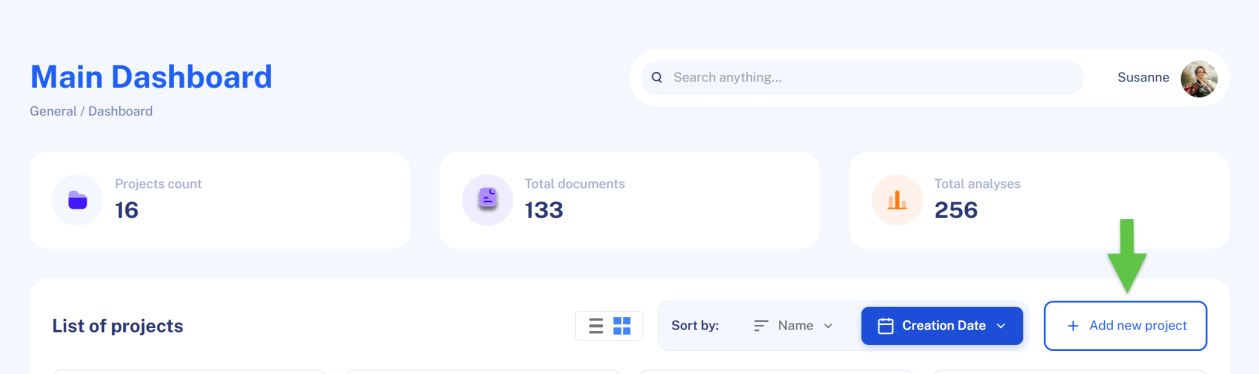
After logging in, you land on the dashboard. As you work with QInsights over time, you'll accumulate multiple projects - use the search field at the top of the dashboard to find one quickly by name.
Start a new project
Click Add New Project on the right side of the dashboard to open the project setup workflow. Everything you enter from this point on becomes context for Q, your AI assistant.
Step 1 - Name your project
Choose a name that meaningfully describes the project for you, your colleagues, and Q - something that will still make sense once you have several projects to choose from. Click Continue.
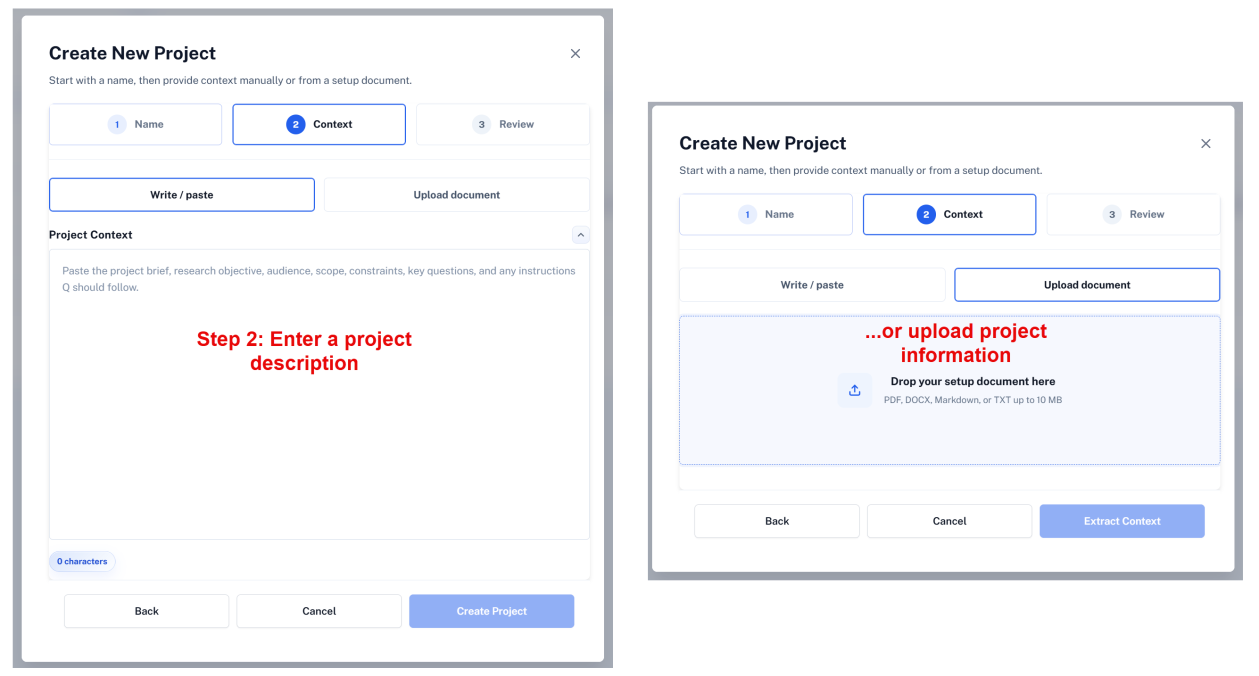
Step 2 - Add a project description
Provide context either by writing directly in the editor or by uploading a document (a brief, proposal, or similar file describing the aim of the project, the research questions, participants, and setting).
Think of Q as a colleague joining your project: what would they need to know to understand it and support you effectively? An LLM has no embodied, lived experience and no direct knowledge of your real-world context - include the background, constraints, terminology, and practical details Q needs to give relevant, high-quality assistance.
Tip: keep the description descriptive rather than prescriptive in the early stages. If you introduce a theoretical framework too early, Q's answers may become narrower than you want. You can always add more focus later, once you know what you need.
Step 3 - Create the project
- If you typed a description, click Create Project.
- If you uploaded a document, click Extract Context first. Q reads the document and drafts a project summary for you to review and edit before you click Create Project.
Editing the description later
Once the project is open, the description appears at the top of the page. Click Show more to read the full text, or Edit to change it.
Note: if you set up your project by uploading a description document, that file will not appear in your list of project documents - the project pane only lists files added through Upload New File. The description itself is contextual information for Q; it is not treated as part of the analyzed dataset.
Use the project description with intent
The project description is contextual information taken into account during every analysis - it should describe the project, the data, the research focus, or other relevant background. Avoid using it for instructions unrelated to the analysis itself (for example, a personal reminder to write the final report in another language), since this can create confusion about which language or focus Q should use during summaries and analysis.
Next steps
With your project created, continue to Uploading Files to add your interviews, reports, or survey data.