QInsights can transcribe audio files directly, so you can work with spoken data - interviews, focus groups, recorded conversations - without preparing a transcript in advance.
- Supported formats:
.mp3,.m4a - Maximum size: 1 GB
- QInsights currently transcribes one audio file at a time
When you analyze the data, you'll be working with the text transcript, with access back to the source audio.
Transcribing an audio file
- From Upload New File, select your audio file as you would any other data source.
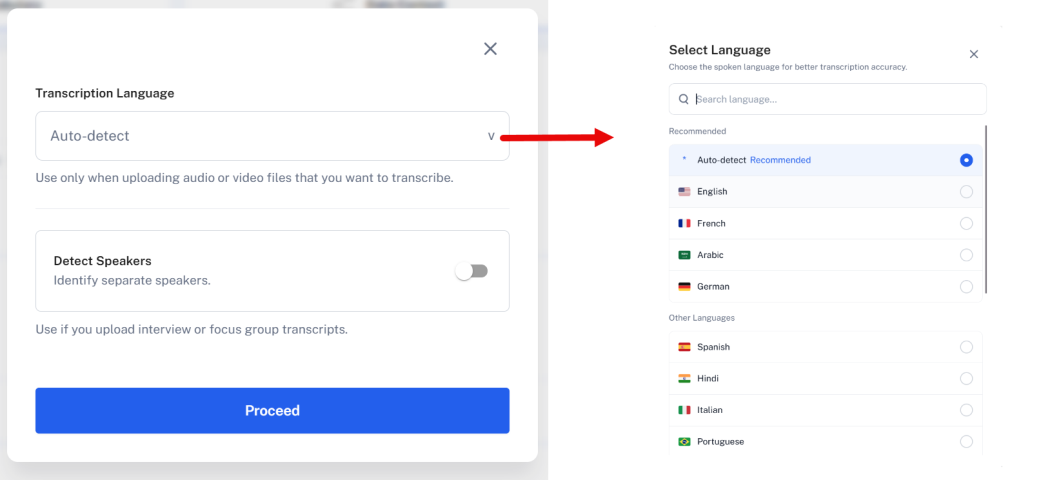
- Choose Auto-detect or one of 18 preset languages - selecting a specific language improves transcription accuracy.
- The Custom Dictionary dialog opens automatically before transcription begins.
Improve accuracy with a custom dictionary (optional)
Add uncommon terms - company or brand names, acronyms, medical or domain-specific terminology - so the transcription tool spells them correctly.
- Add single terms one at a time in the editor, then click Add terms.
- Or prepare a text or Excel file with one term per line and click Choose File to import the list.
- If you don't need this, click Skip dictionary.
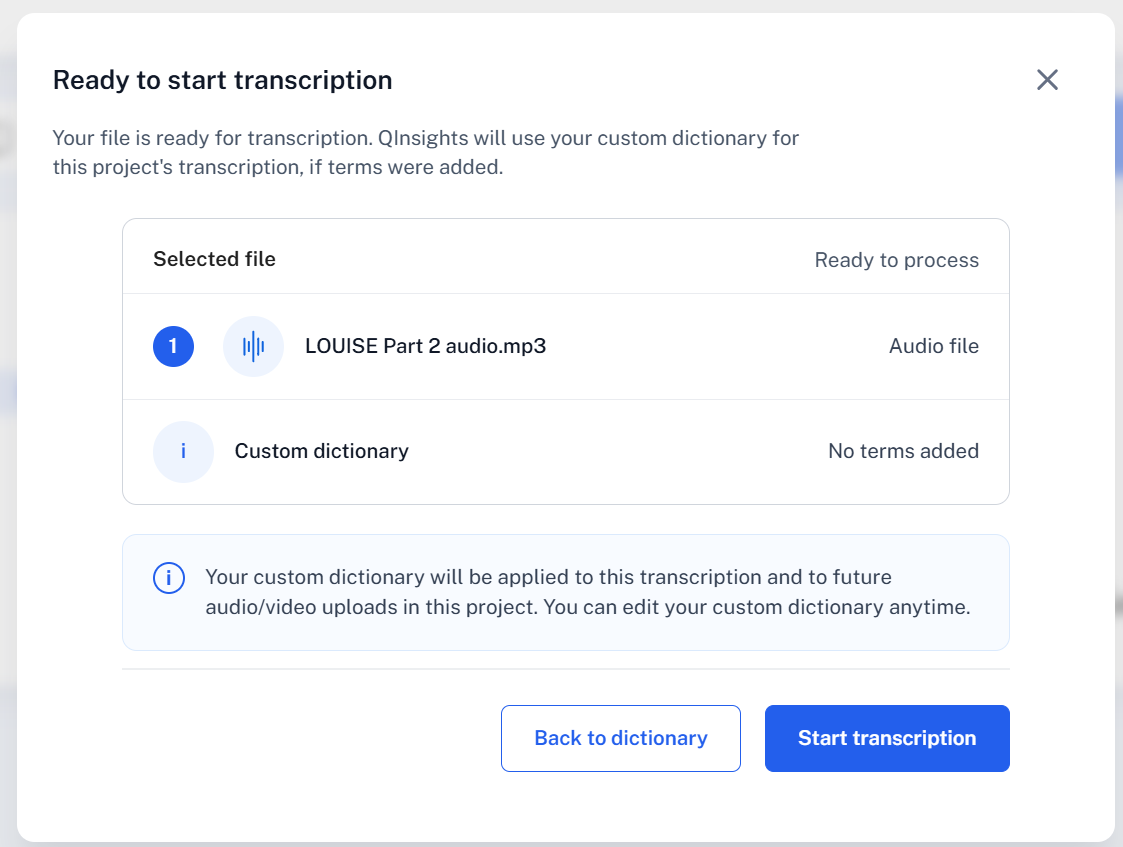
Review the selected file and dictionary terms, then click Start transcription.
After transcription
When transcription finishes, the Data Context panel opens automatically to assign speaker roles. At this stage, speakers are still labeled generically (Speaker A, Speaker B), so it's often easier to close Data Context first, check and correct the transcript - including speaker names - and then reopen Data Context to assign roles.
Next steps
Continue to Transcript Formatting to review and edit the transcript, or jump to Data Context to assign speaker roles.