The Analysis Archive stores every completed analysis within a project, so you can return to earlier results, review past work, and organize analyses to support ongoing research. Open it from Analysis Archive in your project menu.
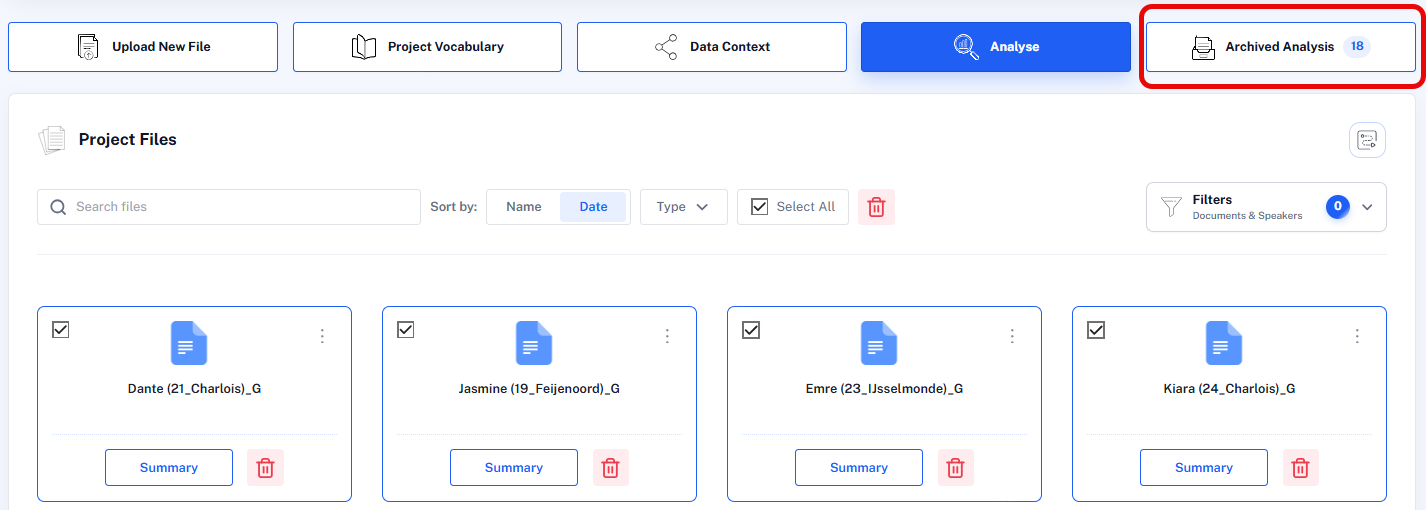
List view and folder view
Click View to switch between two layouts:
- List View - every archived analysis in a single list, useful for scanning by name, file, date, type, or status.
- Folder View - organize analyses into folders by topic, research question, or project phase.
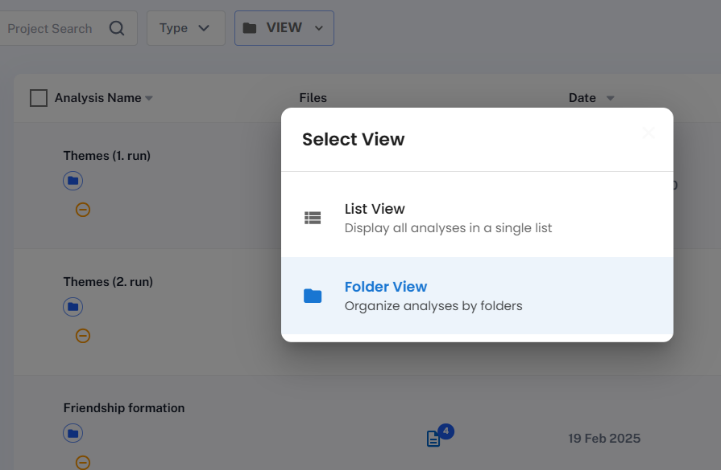
Working with folders
- Click New folder and enter a name.
- Drag and drop an analysis into a folder - a folder icon appears under its name. Each analysis can only belong to one folder at a time.
- Click the orange minus button to remove an analysis from a folder.
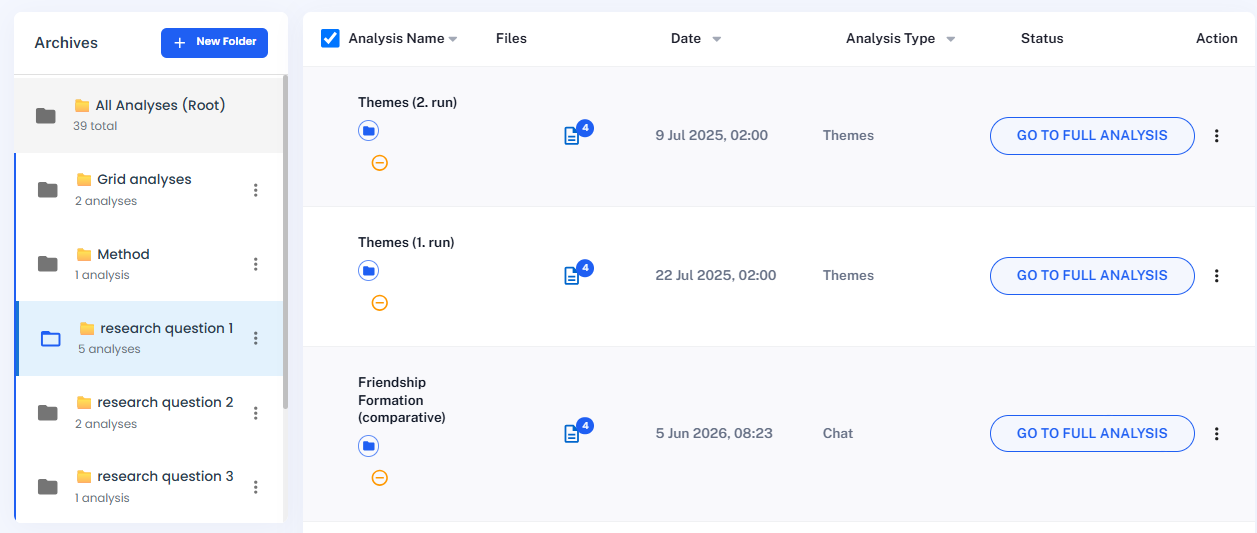
Archive options
- Organizing - click a column header to sort by date, analysis type, or name.
- Reviewing or continuing - click Go to Full Analysis to reopen a previous analysis exactly where you left off.
- Reviewing included documents - the number in the Files column shows how many documents an analysis is based on; click it to see the list.
- Rename, remove from folder, or delete - right-click an analysis for these options.
- Action menu (⋮) - download the default output or delete the analysis.
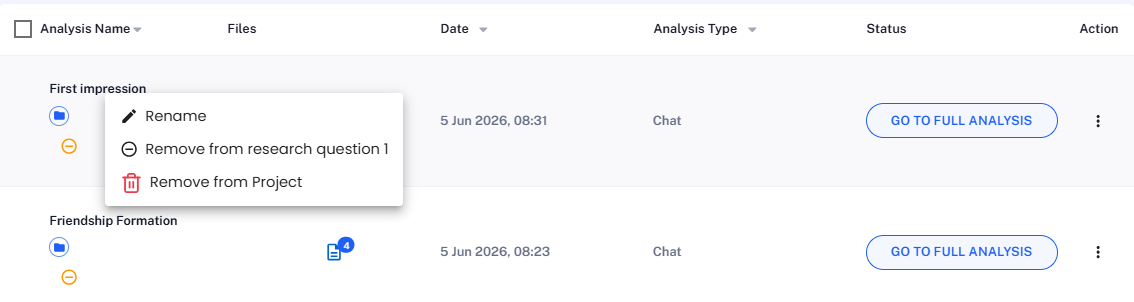
How analysis names are generated
- Theme Analysis - named automatically (
theme_1,theme_2, …); rename them to keep the archive readable. - Conversational Analysis and Grid Analysis - you name these yourself when starting. The exception is a Conversational Analysis auto-saved after an accidental closure or crash, which is named from the first words of your first query.
Since analyses are listed alphabetically, a consistent naming convention keeps related work together - for example, "Theme Analysis (Run 1)" / "Theme Analysis (Run 2)", or "Theme Analysis – Female Respondents" to record the subset used. Use names short enough to scan, but specific enough to show the analysis type, run number, or subset.
Follow-up chats in the archive
For Theme Analysis, Grid Analysis, and Sentiment Analysis, you can start a follow-up chat that builds on the completed analysis instead of starting from scratch - useful for asking more detail about one theme, comparing specific respondents or groups, exploring exceptions or contradictions, or deepening the interpretation of a sentiment category.
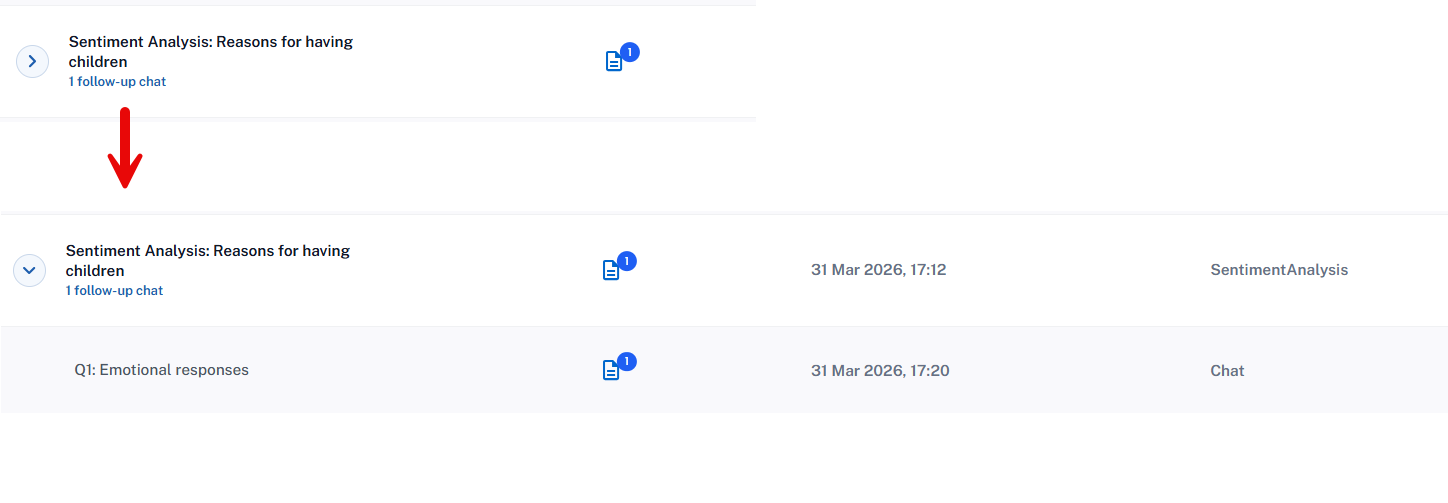
If an analysis has one or more linked follow-up chats, an arrow appears in front of its name in the archive, along with the chat count. Click the arrow to expand the entry and reopen any follow-up chat directly.
Next steps
See Prompting Strategies for how to get the most out of a follow-up chat, or revisit Choosing an Analysis Type to plan your next run.