
QInsights can transcribe audio and video files directly, so you can work with spoken data - interviews, focus groups, recorded conversations - without preparing a transcript in advance.
Select your file from the file browser as you would any other data source, then choose Auto-detect or one of 18 preset languages - selecting a specific language improves transcription accuracy. The Custom Dictionary dialog opens automatically before transcription begins.
Note: QInsights currently transcribes one audio or video file at a time.
Add Terms to a Dictionary to Improve Accuracy (Optional)
Before transcription begins, you can add custom terms - company or brand names, acronyms, medical or other domain-specific terminology - so the transcription tool spells them correctly.
- Add single terms one at a time in the editor, then click Add terms.
- Or prepare a text or Excel file with one term per line and click Choose File to import the list.
- If you don't need this, click Skip dictionary.
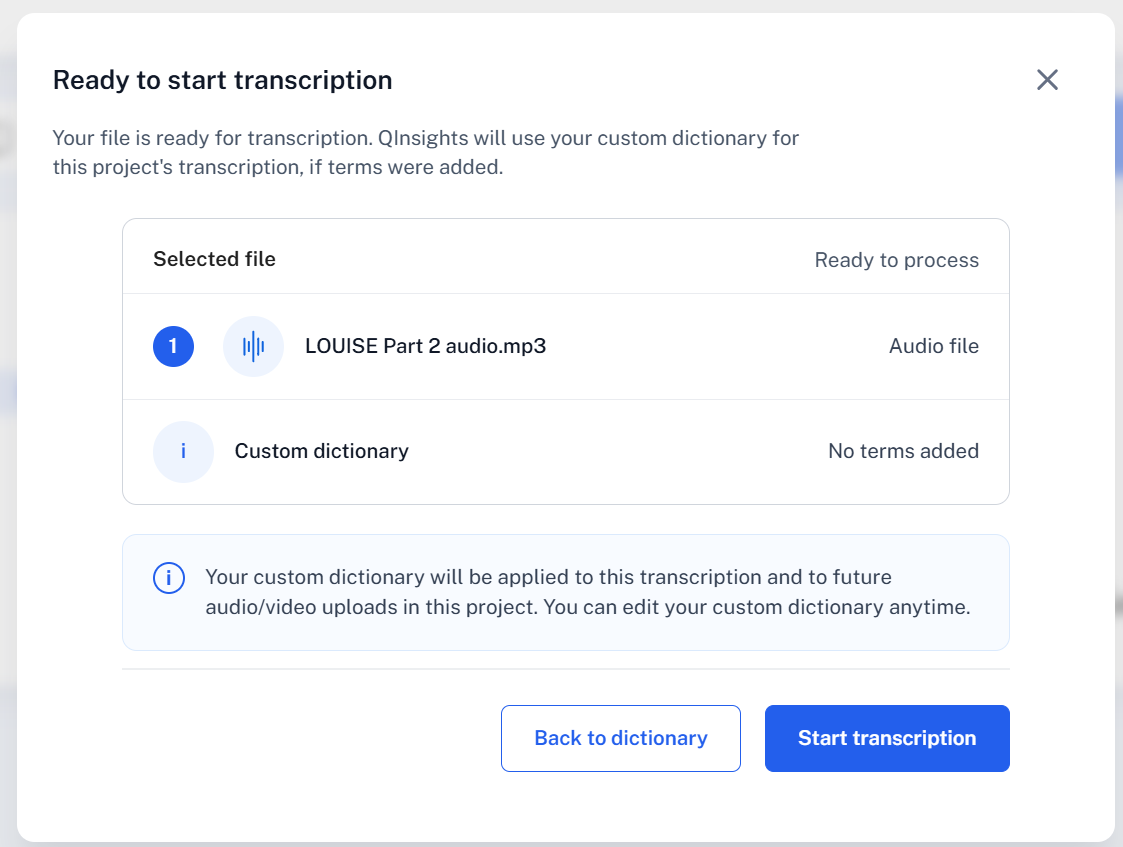
Review the selected file and dictionary terms on the next screen, then click Start transcription.
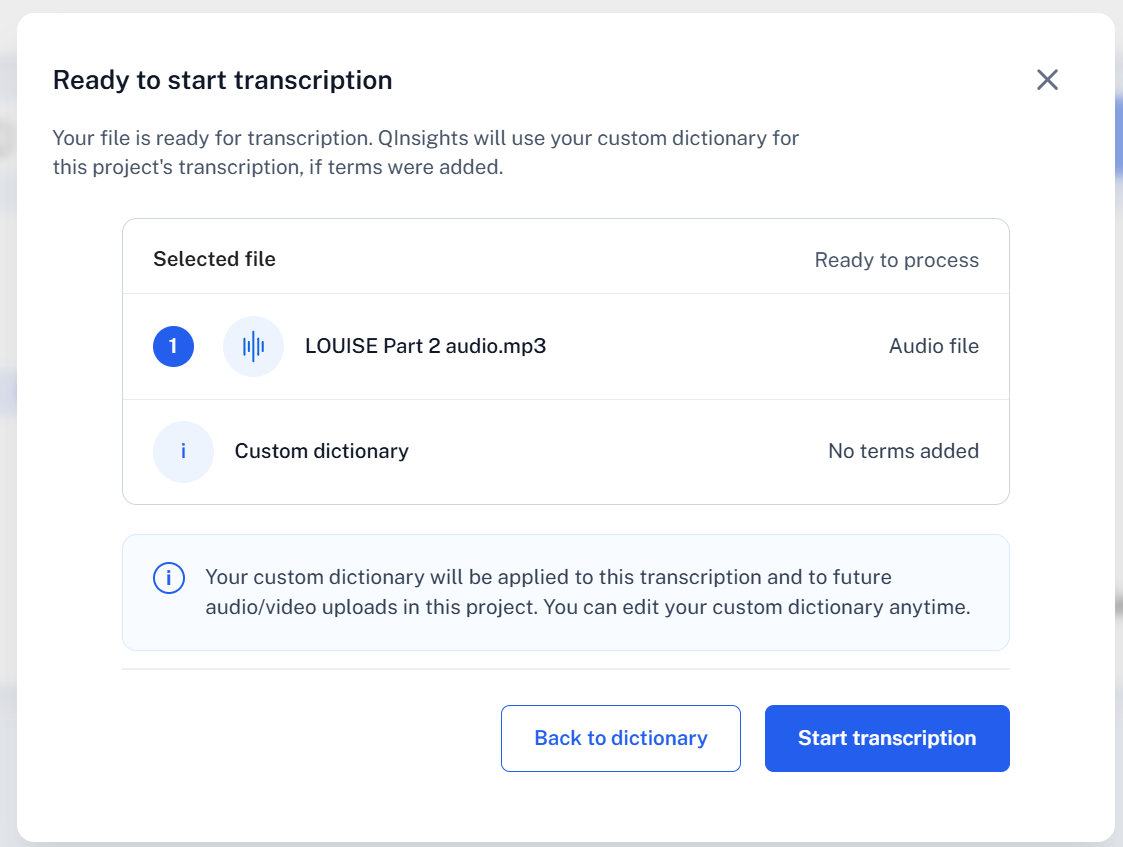
When transcription completes, the Data Context panel opens automatically so you can assign a role to each detected speaker. At this stage you can't yet tell who is the respondent and who is the interviewer, since speakers are still labeled generically (Speaker A, Speaker B). It's usually easier to close Data Context first, check and correct the transcript as described below, and only then reopen Data Context to assign roles.
Checking and Editing Transcripts
Once transcription is complete, open the three-dot menu (⋮) on the document card for these options:
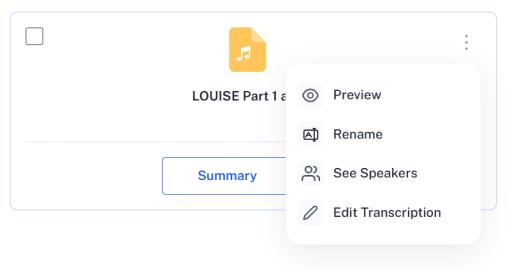
| Option | What it does |
|---|---|
| Preview | Opens a read-only view of the transcript |
| Rename | Renames the document within QInsights |
| See Speakers | Shows the list of detected speakers |
| Edit | Opens the transcript alongside the audio or video, so you can review and correct the text and adjust speaker names |
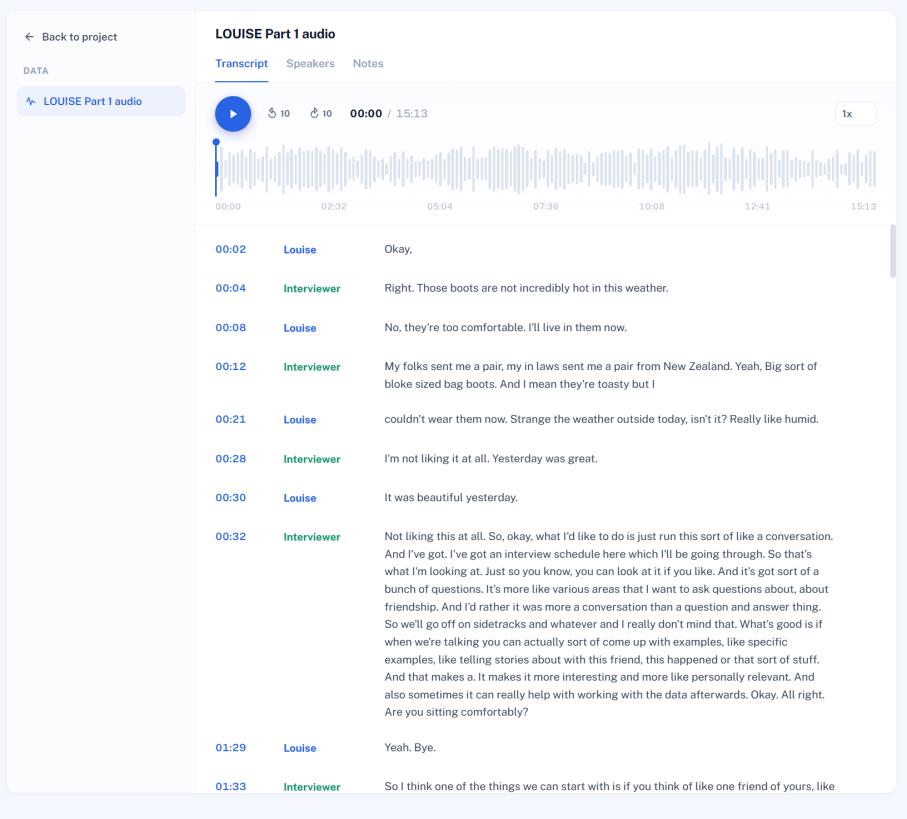
In edit mode:
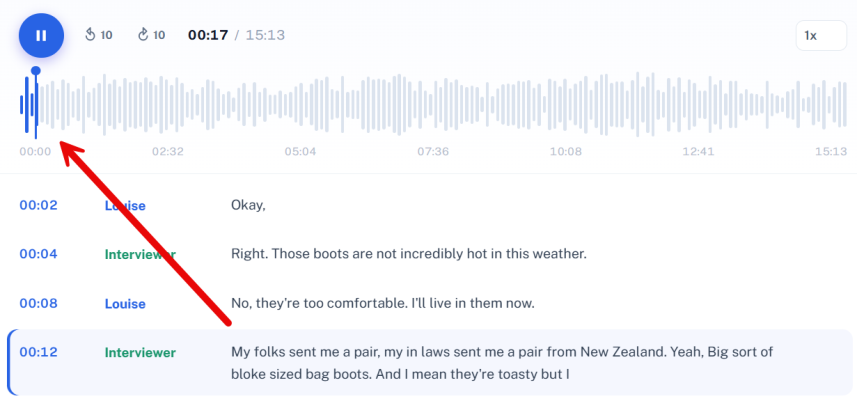
- Click a time mark to jump playback to that point.
- Double-click inside the text to correct it.
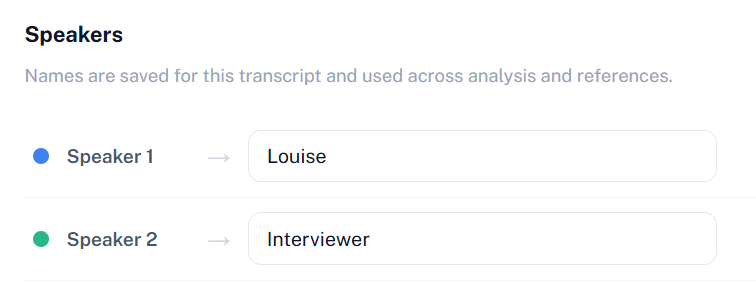
- Open the Speakers tab to rename detected speakers - names are saved for the transcript and reused across analysis and references.
Further Options
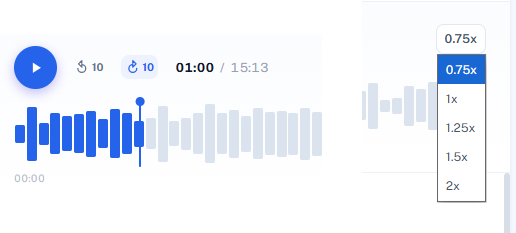
You can jump 10 second intervals back and forth, and you can adjust (slow down or speed up), the speed of the multimedia file.
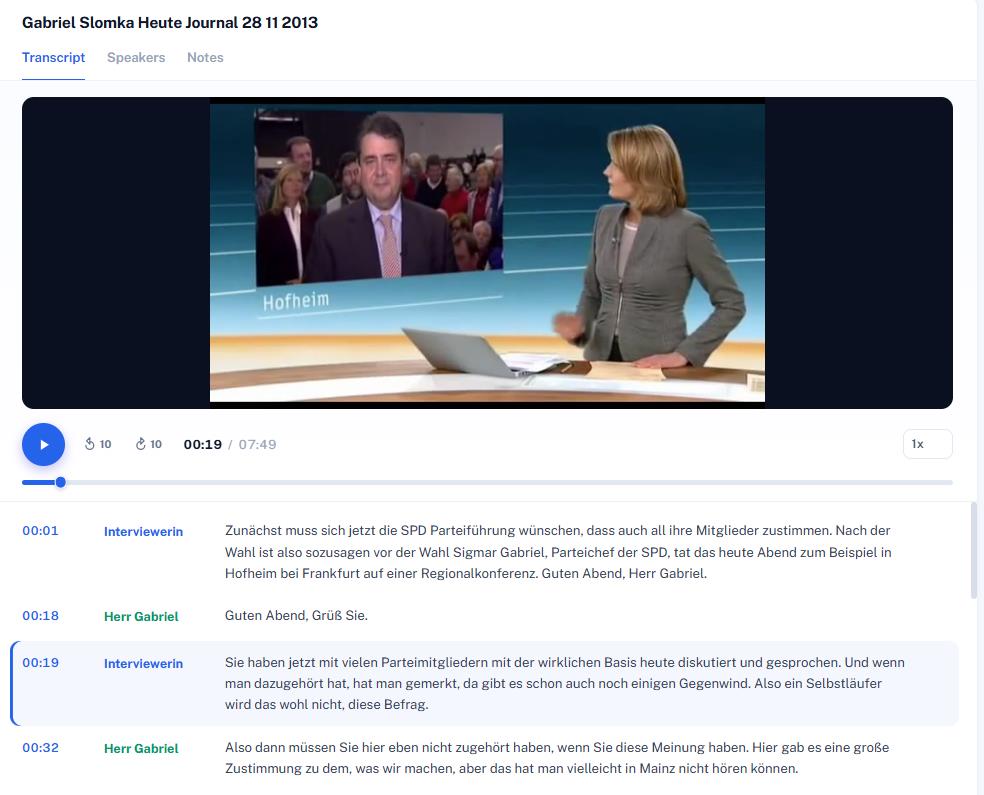
Video files work exactly the same way - the video plays alongside the transcript as you review it.
Once the speaker names are correct, open Data Context to define who is the respondent and who is the interviewer/moderator.
Next Steps
Continue to Data Context to finish assigning speaker roles, or see Adding Transcripts Created Elsewhere if you also have interview transcripts prepared outside QInsights to upload.