
When adding a transcript prepared elsewhere, select the Detect Speakers option. See Preparing Documents for Analysis - Transcripts Created Elsewhere for how these documents need to be formatted so QInsights can recognize speakers reliably.
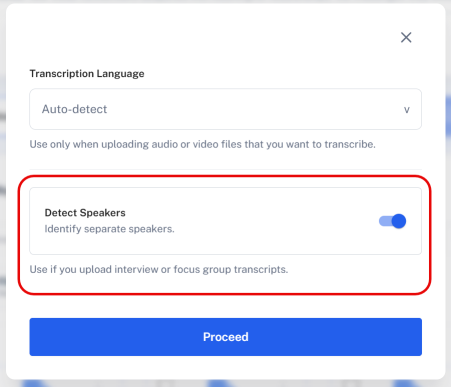
Then click Proceed, and select the file.
Processing takes a few minutes - this isn't a simple upload. At this stage, QInsights is preparing the document for optimal analysis with AI.
Once processing finishes, the Data Context panel opens automatically. Here you assign a role to each detected speaker, so QInsights knows how to treat their contributions during analysis.
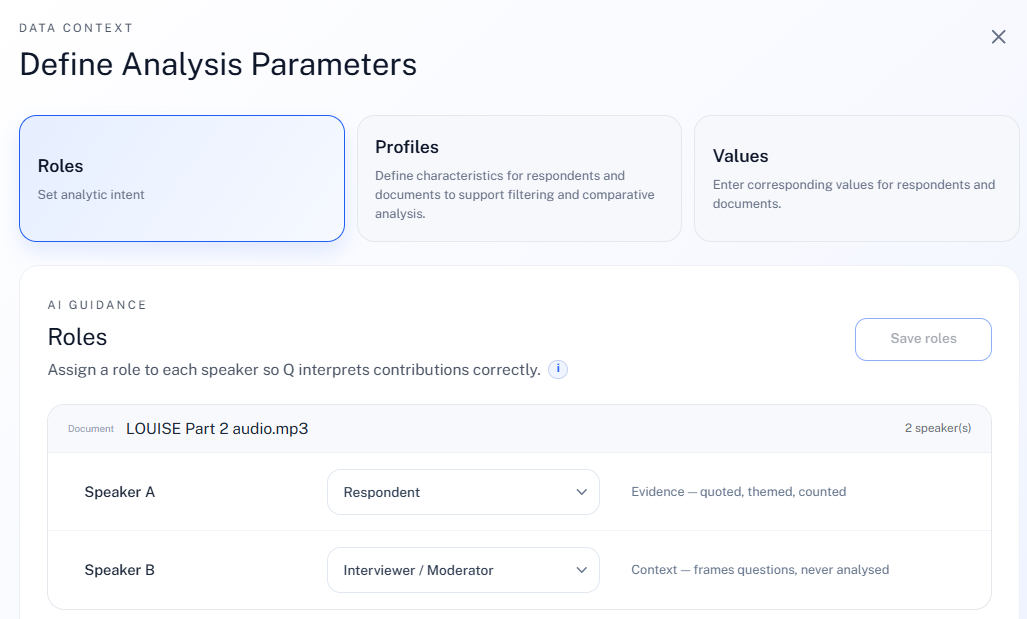
Note: if the transcript contains generic names like Speaker A, Speaker B, and so on, you may first need to open the document preview to see which speaker is the interviewer and which is the respondent. You can edit roles at any time.
Three roles are available:
- Respondent - the speaker's text is treated as primary data and is available for quoting, theming, and counting.
- Interviewer / Moderator - the speaker's text is retained as contextual background but is not analyzed as data.
- Exclude - the speaker's contributions are removed from analysis entirely.
Once you've assigned roles, click Save Roles. You can then close the panel, or continue to the Profiles tab to enter characteristics for your respondents - see Data Context.
Because a transcript prepared elsewhere has no audio or video attached in QInsights, it doesn't go through the timestamped editing view described in Transcribing Audio or Video Files - that step only applies to files QInsights transcribed itself. If you need to correct the text of a transcript prepared elsewhere, edit the source file and re-upload it.
Next Steps
Continue to Data Context to finish assigning roles and characteristics, or see Adding Reports, Notes, etc. in Word or PDF Format for non-transcript documents.