
The Settings area allows you to manage your user account, security options, subscription details, and, if applicable, team administration settings.
Use the menu on the left side of the screen to move between the available sections:
- Profile
- Security
- Billing
- Admin Settings
Profile
In Profile Settings, you can manage your personal profile information. This section allows you to:
- upload or change your profile picture
- edit your first name
- edit your last name
- add or update your phone number
- add or update your company name
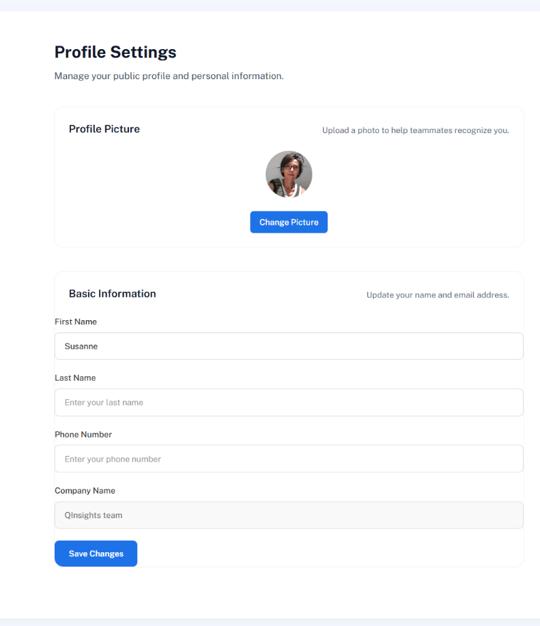
- After making changes, click Save Changes to update your profile.
Your profile picture is displayed in the QInsights interface, for example on the dashboard, and can help team members recognise you more easily.
Security
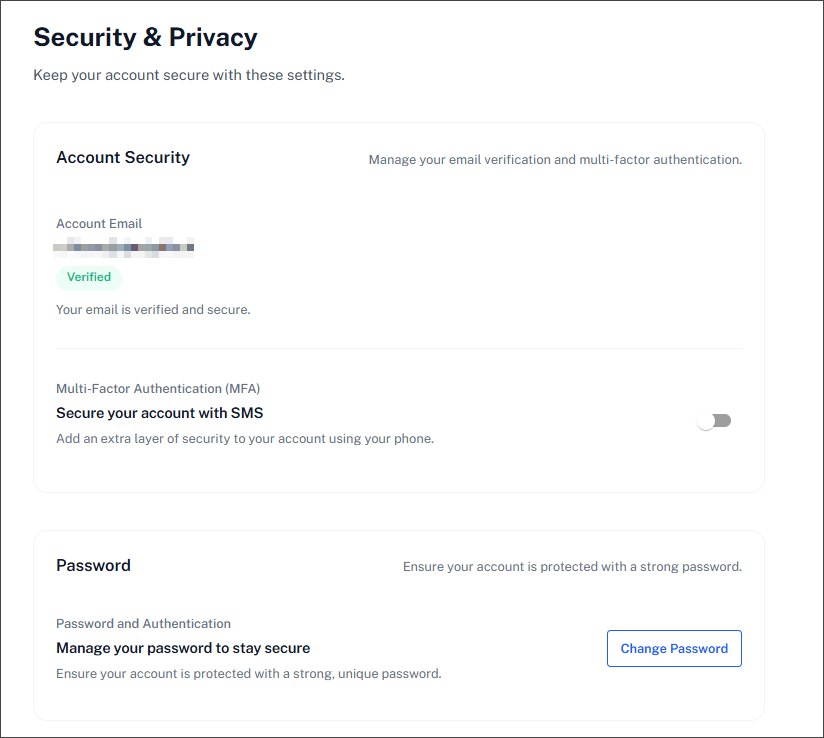
The Security section contains settings related to account protection.
Here you can:
- view your account email
- check whether your email address is verified
- enable or disable multi-factor authentication (MFA) if available
- change your password
We recommend using a strong, unique password and enabling multi-factor authentication when available.
Billing
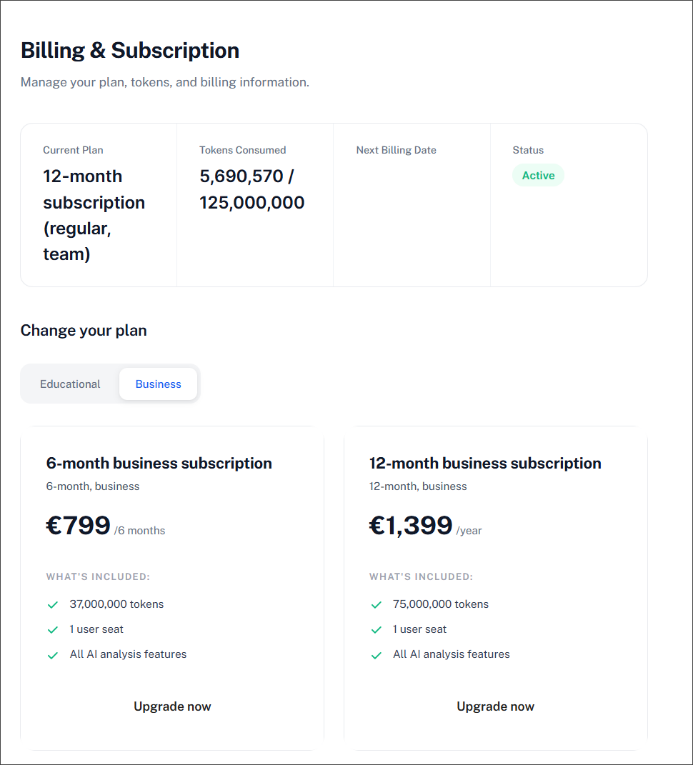
The Billing section provides an overview of your subscription and token usage.
Here you can view:
- your current plan
- the number of tokens consumed
- your remaining token balance
- your total token allowance
- your subscription status
- the next billing or renewal date, where applicable
Understanding Token Use
Tokens are used when QInsights processes your data and generates an analysis. The number of tokens required depends on factors such as the amount of data selected, the type of analysis, the length of the generated response, and the number of follow-up questions asked.
Your token allowance is intended to support normal use within your licence category. You can monitor your remaining balance at any time in the Billing section.
Running low on tokens does not affect analyses that have already been completed and saved. Additional token packages can be purchased when needed, allowing you to continue working without changing your subscription.
Purchasing a Licence
If you are using a trial version and want to continue with QInsights afterwards, you can purchase a licence directly from this section. Select one of the available pricing options and click on it to start the purchase process. Once the purchase is complete, the token allowance and renewal date for your subscription are allocated automatically.
Educational Pricing
The Educational pricing option is only displayed for users who registered with a recognised educational email address. This is checked automatically by QInsights.
If you believe you are eligible for educational pricing but do not see the educational option in the Billing section, please contact partnership@qinsights.ai.
Team Subscriptions
For team subscriptions, please contact partnership@qinsights.ai.
Admin Settings for Team Licences
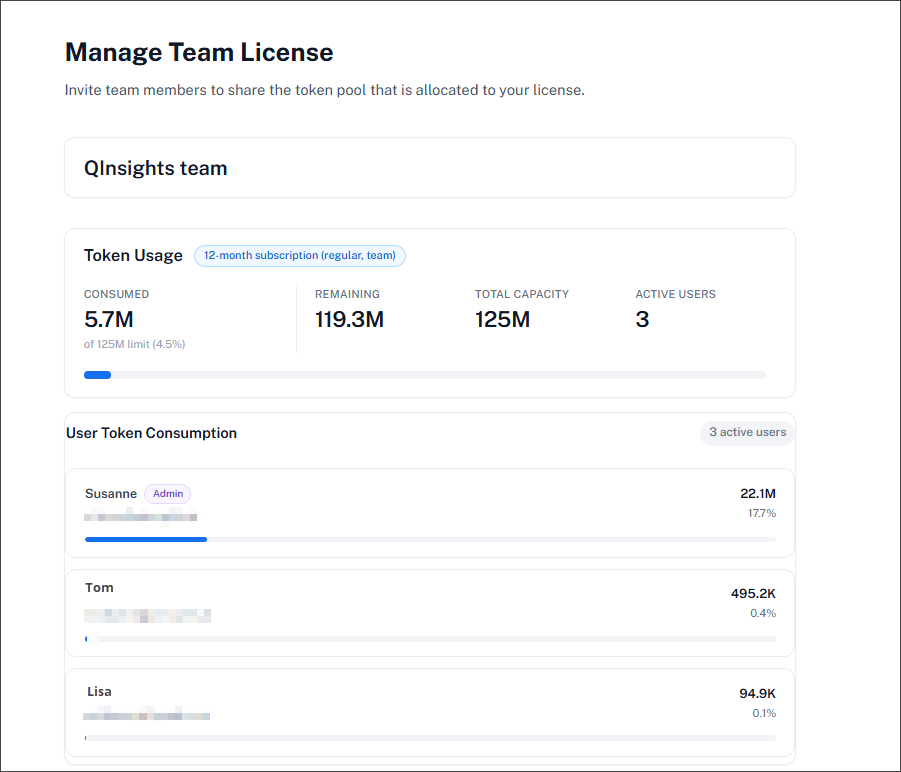
The Admin Settings section is only relevant for the administration of a team licence. It is used to manage licence sharing, token allocation at team level, and team membership.
This is different from project collaboration. Sharing a project and working together on a project is not limited to team licences. Individual users with their own single-user licence can also collaborate on projects with other QInsights users.
A team licence works differently from individual licences in two important ways:
- team licences can be purchased at a discounted rate
- all invited team members share one common token pool
This means that users who are part of a team licence do not use tokens from a personal allocation.
If a user is removed from the team, access to the shared team token pool also ends. In that case, the user’s personal account will show 0 tokens, unless a separate individual licence has been purchased.
Managing Team Members
In the team management area, you can:
- invite a new user by clicking Invite User
- view current team members
- see each user’s role
- review when a user joined
- remove users from the team
- view pending invitations
- cancel pending invitations if needed
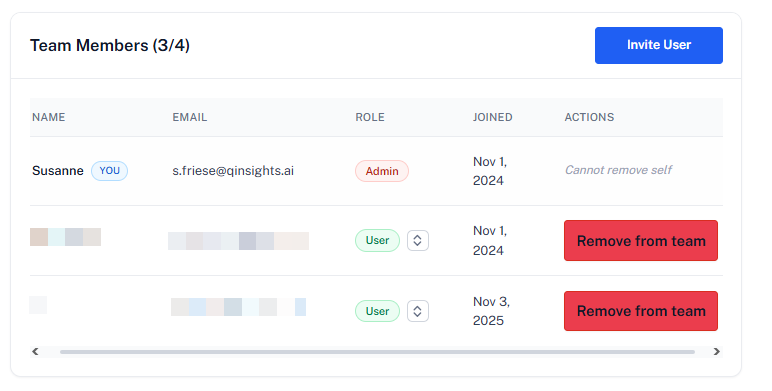
You can also see how many team members are included in your licence. New users can only be invited until this limit is reached.
Changing User Role
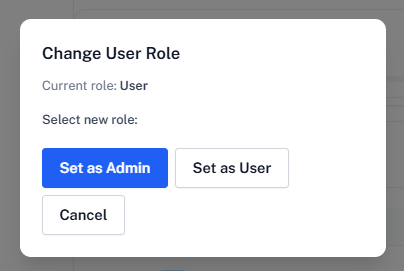
- Click the role selector next to User to change the user’s role.
For example, if the amin leaves the team, he or she can turn over the admin role to another team member.
Changing Team Members During the Licence Period
Team members can be exchanged during the licence period. For example, if a team purchases a 5-user licence, two users may work on one project during the first half of the year, and later two different users may work on another project during the second half of the year. This is possible.
The licence does not require that the same people remain assigned for the entire subscription period. What matters is the number of users who have access to the shared licence pool at the same time. In other words, a 5-user licence allows up to five active team members to use the team licence concurrently. Team members can be removed and replaced as project needs change.