The Analysis Archive stores all completed analyses within a project. It allows you to return to earlier results, review previous work, and organise analyses in a way that supports ongoing research.
To access the archive:
- Click on Analysis Archive in your project menu.
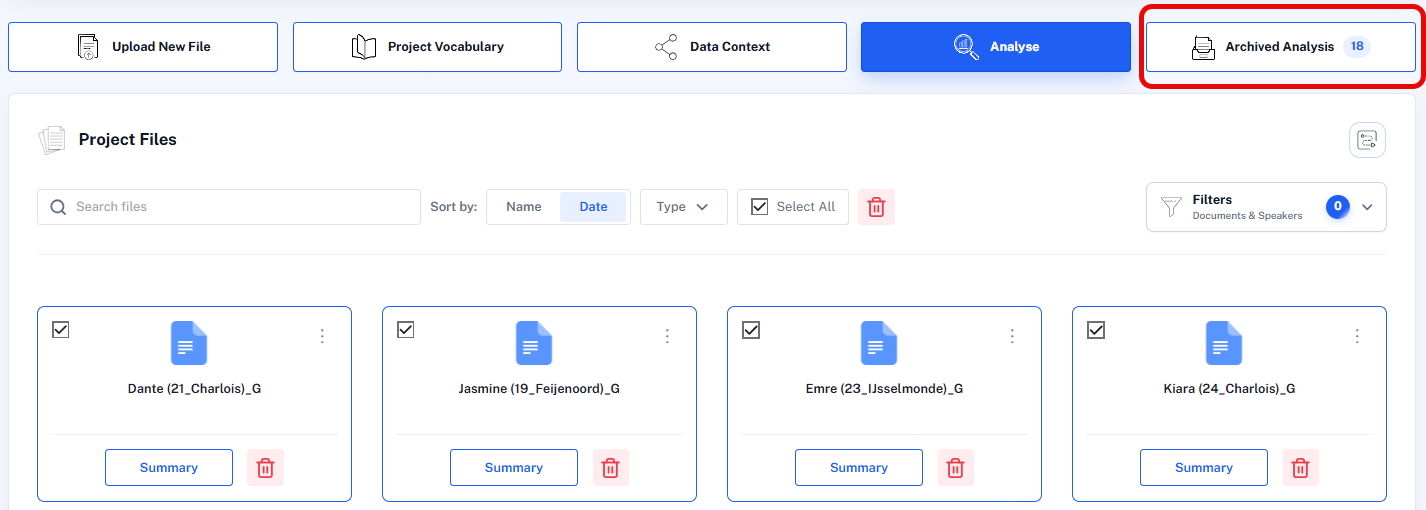
You can view the archive in two different ways:

List View
List View displays all archived analyses in a single list. This view is useful when you want to scan analyses by name, file, date, analysis type, or status.
Folder View
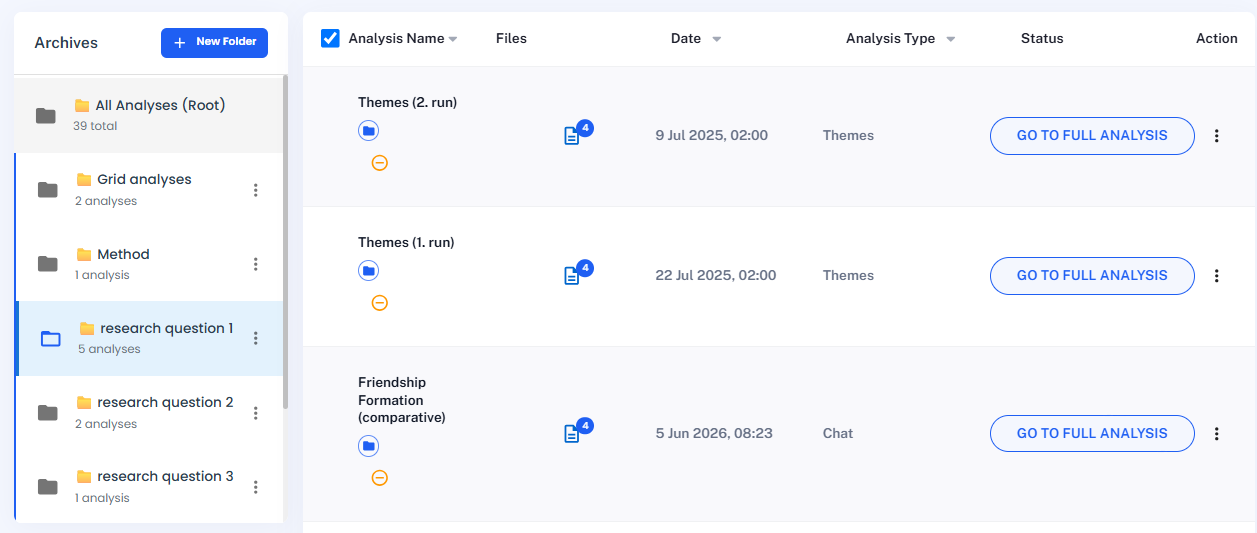
Folder View allows you to organise analyses into folders. This is useful when you want to group analyses by topic, research question, phase of the project, or any other logic that helps structure your work.
Below you see the archive in folder view:
Working with Folders
- Click on New folder and enter a name.
- Drag and drop an analysis into a folder. A folder icon will appear under the analysis name. Each analysis can only be in one folder.

- To remove an analysis from a folder, click on the orange button with the minus (-)

Archive Options
Organizing: Click on the column headers to sort the analysis by date, type of analysis name.
Reviewing or continuing an analysis: You can continue any analysis by opening an analysis in the archive. Click on Go to Full Analysis to open a previously conducted analysis.
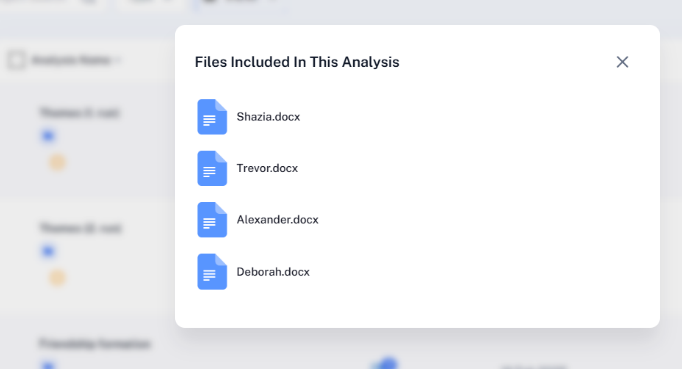
Reviewing the documents in the analysis: In the Files column, the number indicates how many documents are included in the analysis. If you click on it, it will show the list of documents:
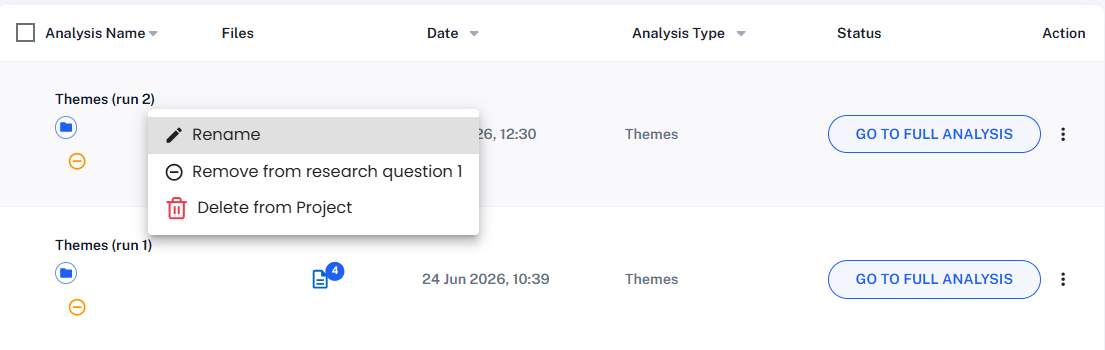
Rename, delete or remove from folder: Right click on an analysis to either change the name, remove it from a folder if it already sits in a folder, or delete it from your project entirely.
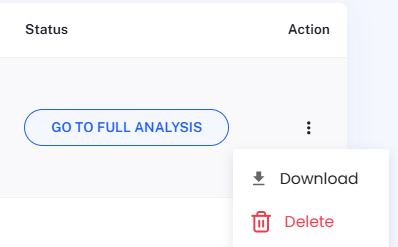
Action menu: When you click on the three dots, you see the option to download or delete an analysis. If you trigger the download option from here, the default output will be downloaded.
How Analysis Names are Generated
For Topic Analysis, names are generated automatically, for example Topic_1, Topic_2, and so on. You can rename these analyses to make the archive easier to read and manage.
For Conversational Analysis and Grid Analysis, you normally enter a name yourself when starting the analysis. An exception is a Conversational Analysis that is auto-saved after an accidental closure or a system crash. In that case, the analysis name is generated automatically from the first words of the first query.
Renaming analyses is useful when you want to make repeated runs easier to distinguish. For example, you may want to rename analyses as Topic Analysis (Run 1) and Topic Analysis (Run 2), or include the subset used, such as Topic Analysis – Female Respondents or Grid Analysis – Department A.
Clear names also make the archive easier to sort and navigate. Since analyses are listed in alphabetical order, a consistent naming convention helps keep related analyses together and makes them easier to find later.
Use names that are short but informative enough to show the type of analysis, the run number, or the subset of data used.
Follow-up Chats in the Archive
For Topic Analysis, Grid Analysis, and Sentiment Analysis, you can start a follow-up chat to explore the results in more depth.
A follow-up chat opens an interface that looks like the regular Conversational Analysis view. The difference is that it does not start from scratch. Instead, it builds on the analysis that has already been completed.
This allows you to ask additional questions about the existing results, clarify specific findings, examine some content more closely, and continue working from the context of the original analysis.
Use a follow-up chat when you want to go beyond the first output without running a completely new analysis. For example, you may want to:
- ask for more detail about a topic
- compare specific respondents or groups
- explore exceptions or contradictions
- deepen the interpretation of a sentiment category
Because the follow-up chat is linked to the previous analysis, it helps you continue the analytic process in a focused way while keeping the earlier results as your starting point.
Display of Follow-Up Chats in the Analysis Archive
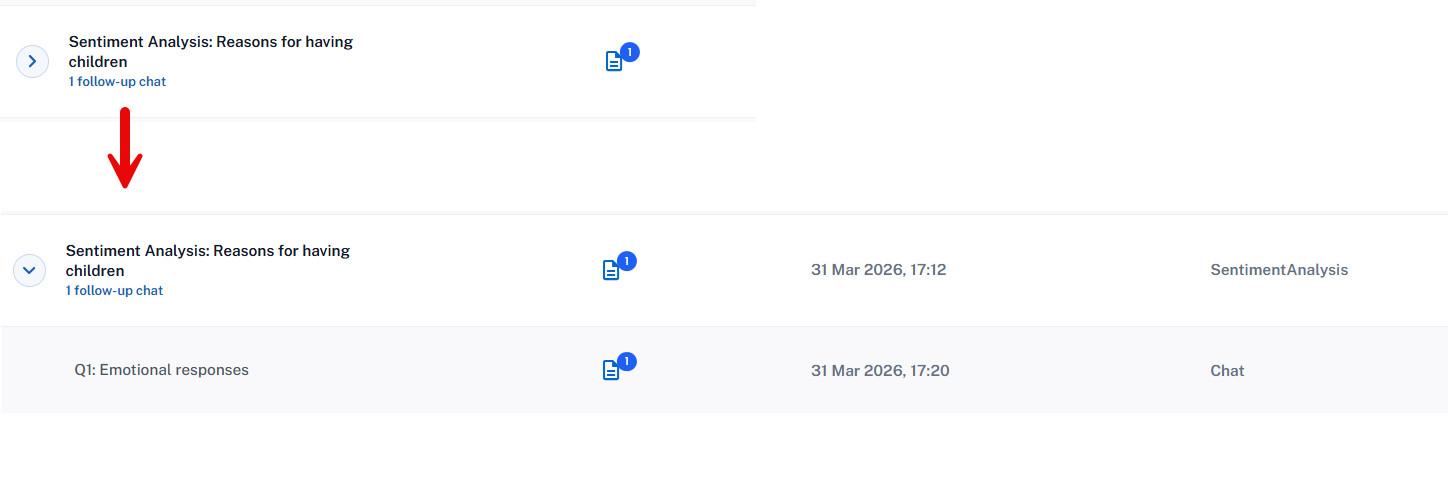
If a Topic Analysis, Grid Analysis, or Sentiment Analysis includes one or more follow-up chats, an arrow is displayed in front of the analysis name. Beneath the name, you also see the number of follow-up chats linked to that analysis.
Click the arrow to expand the entry and display the available follow-up chats.
This allows you to see which follow-up explorations belong to a particular analysis and to reopen them directly from the archive.